OrderEntry screen
Menubar in OrderEntry
Data screen
General screen
Customer Screen
Order Screen
Product Screen
Menubar in OrderEntry
You can get access to the applicable menu options in many different ways. You can use the Menubar and Keyboard Shortcuts.
The Menubar contains so-called pop-up menus for SOSET OrderEntry commands. Use the mouse to point at a top-level menu item in the Menubar, click it to open, and then click a command to select the requested sub menu.
The Menubar can also be activated by holding down the ALT key and use the arrow buttons on the keyboard to go to the various menu-items, finally pushing the Enter key to select the appropriate menu. Commands shown in gray do not apply to the operation you are trying to perform.
The Menubar enables you to switch easily between the Order screen, Product screen and Customer screen. Every screen has its own capabilities concerning menu options.

Data screen
The SOSET OrderEntry screen gives access to all available functions. In the data area you find the properties of the order, customer or product in the current screen. These properties are set during entering or editing a record. At a glance, you can view all information concerning a customer, order or product.
The menubar provides access to all options of SOSET OrderEntry. As it is a combination of order managing and database techniques, you will find several special and unique options to work efficiently with your databases, next to several common and typical data-entry options.
When you open a menu option, a window appears into which you can enter information. You can communicate with SOSET OrderEntry, since you both provide and receive information through these dialog boxes.
After entering your pincode SOSET displays a dialog in which you select the company to open. Afterwards SOSET displays the Order screen. You can start assigning orders to customers known to the system.
In case of a new customer or a new product, you have to switch to either the Customer screen or the Product screen.
If you close the company, you are in the General screen. In this menu, you can perform all kinds of operations that require exclusive use of the database files so all the existing files have to by closed, e.g. for reindexing database tables.
At any time you can decide which screen you want displayed on your screen. This means you select whether you want to work in the Product-, the Customer- or the Order screen. Select from the Maintain menu the appropriate menu-option or use the Toolbar buttons.
General screen
All options are top-level menu-items in the General screen and will show pop-up menus when selected. On the main menu, you click this menu, point at a sub menu, clicking it to select it.

Customer Screen
When you want to enter, edit or view customers on
customer-number, you select Customer from the Maintain menu or press the C- button,  to open the Customer screen.

On top of the SOSET OrderEntry screen you find the Menubar. All options are top-level menu-items in the menubar and will show pop-up menus when selected. On the Menubar you click this menu, point at a sub menu, clicking it to select it.
Order Screen
When you want to enter, edit or view orders on order number,
you select Order from the Maintain
menu or press the O-button,  to open
Order screen.
to open
Order screen.
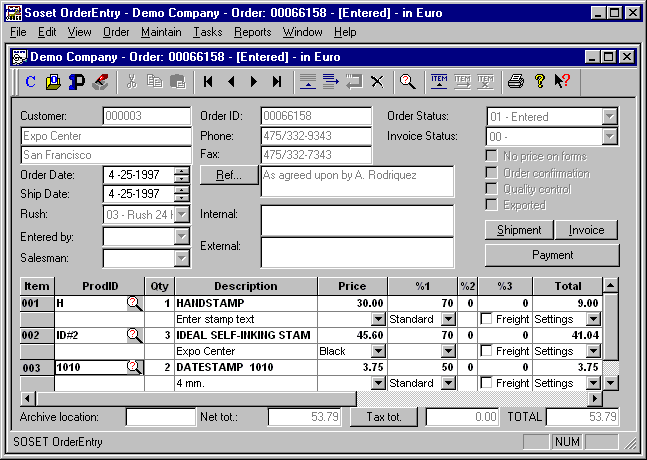
On top of the SOSET OrderEntry screen you find the menubar. All options are top-level menu-items in the Menubar and will show pop-up menus when selected. On the Menubar you click this menu, point at a sub menu, clicking it to select it.
Product Screen
When you want to enter, edit or view products on
product-number, you select Product from the Maintain menu or press the P-button,  to
open the Product screen.
to
open the Product screen.

On top of the SOSET OrderEntry screen you find the menubar. All options are top-level menu-items in the Menubar and will show pop-up menus when selected. On the Menubar you click this menu, point at a sub menu, clicking it to select it.
Contact us in case you have any question or comment via our email