Customer/Order/Product Menu in OrderEntry
This menu enables fast and clear data-entry.
This menu has database-management-options. Remember that you are adding a NEW record to a
database-table and NOT creating a NEW file.
New
Edit
Duplicate
Update
Close
Delete
Find
Go To
OrderItem
Foreign Currency
New
Clears the Customer screen or the Product screen and enables you to create a new customer or product.
In the Order screen, you enter the customerID (with the buttons Previous and next you can browse through the database; the questionmark next to the CustomerID field you open the Multiple Search dialog box).
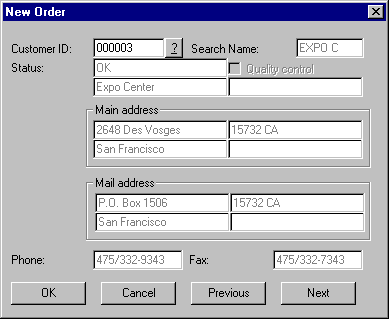
The new record will be added to the database, after updating it. . Shortcut:  Ctrl +F8

Edit
Activates/opens the current record, enabling you to modify its properties. Shortcut:  , Ctrl +F9.
Duplicate
Duplicates the contents of the current document.
This command is only available in the Customer screen and Product screen.
Update
Finish your data-entry by writing the new data to the SOSET database. In case
you are not satisfied with the information you entered, you simply close the record, (this
Close command can be found in the Customer/Order/Product menu), without updating it. The
(last) changes you have made to your document or the entire record (in case you opened a
new record) will not be saved. Shortcut:  , Ctrl +F10
Close
Ends your current entry. If you are finished, you answer yes to the question whether or not SOSET should update your document. The document will be saved as a record in the database-table. In case you are not satisfied, you simply close the order, without updating or saving it. In that case the (last) changes you have made to your document or the entire document (in case you opened a new record) will not be saved.
Delete
Deletes the current order or product in the database. You need to confirm
complete deletion of the order or product. Shortcut: 
The order or product you have deleted remains visible in the database-table but is marked as Deleted so you cannot access the record during browsing. If you open a table using NamoUtil you will be able to see the Deletion marker. The first column of the table is colored black if the stamp is marked as deleted (clicking on this field will troggle the deletion marker on and off). To refresh your database table, you can run the Pack Tables command in SOSET NamoUtil or SOSET NamoSys. All records marked as deleted will now be removed from the table.
Note: SOSET will automatically put a backup in the Temp-directory of the table to be packed, just in case…
This command is only available in the Order screen and Product screen. You cannot delete a customer, for obvious reasons.
Find
Displays the Find submenu which, depending in the screen you are in, offers you the several search-options.
Also, the latest five used orders are displayed in this submenu to easily find the order last edited.
 Search options in the Customer screen:
- CustomerID. Shortcut: Ctrl + F1
- Customer Searchname. Shortcut: Ctrl + F2
- Customer City. Shortcut: Ctrl +F3
- Customer Group
- Customer Postal
- All. Displays the Customer Multiple Search dialog box which enables you to enter data for the search routine. Shortcut: Ctrl + shift +A.
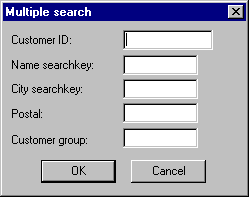
Search options in the Order screen:
- On OrderNo. Shortcut: Ctrl + F3
- On Shipping Date. Shortcut: Ctrl + F2
- Reference 1. Shortcut: Ctrl +F1
- On Stamp Searchkey 1
- On InvoiceNo
- On Customer. Displays the Customer Multiple Search Dialog Box
- All. Displays the Order Multiple Search dialog box which enables you to enter data for the search routine. Shortcut: Ctrl + shift +A.

Search options in the Product screen:
- ProductID. Shortcut: Ctrl + F1
- Product Searchkey. Shortcut: Ctrl + F2
- Customer group. Shortcut: Ctrl +F3
- All. Displays the Order Multiple Search dialog box which enables you to enter data for the search routine. Shortcut: Ctrl + shift +A.
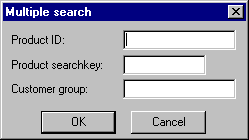
Once the requested information is found, you will get a selection of all items that fit to your specifications. A double-click in the list will show the selected item.
Note: After the find operation the browse sequence will display the next found item instead of the next natural item
Go To
Displays the Go To submenu which lets you browse through the existing records. A database system needs a browser to go through all saved records, from first to last, from beginning to end and forward or backward. The Go To command offers all this. You can go respectively to the first, the last, the next and the previous record, simply by clicking the appropriate submenu-item.
- Top. Displays the first record in the database. Shortcut:
 , Ctrl +F4
 - Previous. Displays the previous record. Shortcut:
 , Ctrl +F5
 - Next. Displays the next record. Shortcut:
 , Ctrl +F6
 - Last. Displays the last record. Shortcut:
 Ctrl +F7
 - Skip. Sets the number of records that will be skipped when using the browse buttons.
- Go To Recordnr… Enables you to jump you directly to a entered record number.
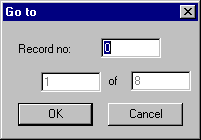
OrderItem
Displays the OrderItem submenu, which has the following options:
- Add. Displays the Order Item Dialog Box. Shortcut:
 , Ctrl + A
In the Order Item Dialog Box you have to specify the ProductID. To do so you can use either the browse buttons below the ProductID field or click the Questionmark on the right of the ProductID field. - Edit. Shortcut:
 , Ctrl + E
 - Delete. Shortcut:
 , Ctrl + D
This option is only available in the Order screen.
Foreign Currency
Lets to switch between the different currency screens when you use more than one currency. Shortcut: F12
Contact us in case you have any question or comment via our email