File Menu in NamoSys
Reindex
Browse
Check Tables
Change Logo Path
Pack Tables
Preferences
Query
Archiving
Print Barcode Labels
Reindex
Displays the Reindex submenu, which is used to initialize the SOSET database-tables and re-index the search-fields. You can choose to reindex all tables, a single table or an archive stamp table. Re-indexing is usually not necessary, because SOSET maintains the production index files automatically when you start the SOSET program and enter or modify data.
An index might become corrupted as a result of a system failure, such as a disk error or power outage, that prevents SOSET from properly saving changes to disk. Re-indexing the SOSET database-tables is recommended after such a situation. Use the reindex routine also in case you discover strange results in any search or print routine.
Note: It is a good habit to regularly reindex your database-tables, to avoid
problems and ensure that the indexes are intact and accurate. We advise you to take a few
minutes each morning to reindex the tables.
In a network it is necessary that nobody is using the SOSET program and that all
SOSET databases are closed. Otherwise the reindexation tables is
impossible. A message will appear in case NamoSys cannot re-index one or more
database-tables.

Browse
Displays the Browse submenu in which you can select a database-table of the SOSET program. After selecting one table to browse, you enter a dialog that shows the ID's and the descriptions. You can add, edit, or delete items.
Some extra attention is required when entering or modifying the product-table. Enter only net-sizes in this table, as SOSET will use and control all this specified space. All the examples in the product-table are manufacturer-sizes minus 1 Millimeter (1/32") on each side.
Once you have selected a database-table to view, you can view each item by clicking the Edit button. If you subsequently make changes that do not satisfy you, you push the Cancel button. SOSET will cancel any selection made and will therefore not save any of the changes made to the database record. Clicking the Add button will enable you to add another record to the selected database table. In case you want to delete a record from the database-table, you simply click the Delete button. Selecting the Close button returns to the main application.
Product-table
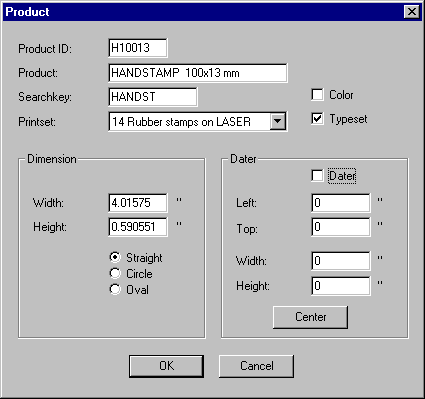
Displays the Product-table which offers the total numbers of different kinds of products. For each product you can enter a predicted, a product description, a Searchkey, the printsetID. You can also include the size and shape of the product and the size and position of the date-area (if applicable). Next to it you can check Color, if the product is colored or leave this field unmarked if not, and you can check Typeset, if the product is a typeset product and leave it unmarked in case of a stockproduct (F = False).
Color-table
Displays the Color-table which shows all available colored's and the corresponding colors.
Mount-table
Displays the Mount-table which shows all available mount's and the corresponding mounts.
PrintSet-table
Displays the PrintSet-table
which sets the preferences per printset.
Here you can set and modify settings for output to printing devices but also for laser
engraving. You can position the stamp on the page. Decide the size of the unprintable
margin as well as the size of the separator. The Fixed Positioning
option should be used with care. This option enables you to overrule PageWizard positioning, if you choose to set this field to false.

- Print Title will print PageWizard information on top of the page.
- Unprintable margin sets the page margins.
- Separator sets the distance between the stamps in the page-layout.
- Cut distance sets the distance between the stamp-border and the cutting lines.
- Lasercutting will display the LaserJet dialog box in Typeset which enables you to select a Lasercutting options whenever you update a stamp. If the
Contourcutting box is selected the Advanced Contour is by
default selected in the LaserJet dialog box.
Check Lasercutting if you want laser engraving for this product-group, this also initiates automatic calculation of the cutting-paths. If you don not want laser engraving, this field should be unmarked. If you want the cutting-paths for laser engraving calculated around the text, you check the Contourcutting-field. If you want cutting along the size of the product set make sure this field is not marked. - Scale enable you to compress a complete page when you print a page to the printer or to the laser.
- Mold enables you to use, set and print a mold. You can also place ledger-lines in the mold if you want to manually align the stamps.
- Fixed positioning enables you to set a default page layout for the printed
You can start lay-out-positioning of products of the intended group on the start and starry position with a delta and delete distance between each product. This means that with the Start fields you determine the XY-coordinate or the starting-point of the page-layout. With the value for start and starry you enter the start position (X, Y) of the engraving (from the upper left of the page). With the Delta fields you define the distance between the various products on the page. With the value for delta you set the horizontal whitecap between the stamps to engrave. With the value for Delta Y you set the vertical whitecap between
In the SOSET M&R Gold version it is possible to select either Standard M&R Laser Settings or Advanced M&R Laser Settings. This means: High quality laser engraving with the best of both SOSET and M&R expertise.
The Standard M&R Laser Settings offer highest possible precision, you can
expect from laser cutting and engraving. Only in special circumstances (for instance in
case of certain technical problems), you are advised to use the Advanced M&R Laser
Settings. Both laser settings offer the M&R default settings.
For more information see M&R Laser
Engraving and SOSET Typeset.
System-table
Displays the System-table which shows all system-variables or parameters and their values. We advise you very much against editing this table.
User-table
Display the User-table which shows all users in the SOSET system (in case of a multi-user environment).

For each user you can view the used and the username and access level. Thereby you can view and assign the type of user, e.g. remote customer, salesman or expired. In case of a remote customer, you can enter the appropriate remote customer. Finally you can change the assigned PIN code.
All users of the SOSET-software need a pin-code in order to get access to several functions.These pin-codes enable you to track user-information and to protect the SOSET-data with restricted use. This allows a SOSET-supervisor to add, edit or delete users for the Soset program. The level attached to the pin-code can vary from 0 to 9. A higher level (of course) gives access to more critical functions and can be used to overrule a low-level pin-code. These functions can be specified as follows:
- level 9 allows unrestricted access to ALL Soset functions
- level 8 allows access to Maintain functions in OrderEntry, access to NamoSys functions, Restore Shipment run, Restore Invoice run, Exit NamoKey, edit of global preferences
- level 7 reserved for future use
- level 6 allows invoicing,history and sales reports
- level 5 allows editing Order, Customer and Product-data
- level 4 allows Shipping options,Typeset delete, PageWizard functions
- level 3 access to all Typeset options
- level 2 view options in Typeset options
- level 1 reserved for future use
Notes-table
Displays the Notes-table which gives information about the notes which are saved on behalf of SOSET Quick Typeset.
Displays the Laser-table which shows all of the available lasers.

When using a LMI laser leave the RX box unmarked. Now SOSET will make all the necessary calculations to "laser-enable" the stamps.
When you use an Universal laser you have to mark the RX
box. You can then specify the default printer driver used by this laserID (the printer
driver has to be installed in Windows). All calculations are now being done by the
laser-driver.
For more information see M&R Laser
Engraving and SOSET Typeset.
Laser Settings table
Displays the Laser Settings-table which enables you to specify for every printset ID a different laser ID. For each laser ID you can specify the Power and the Speed.
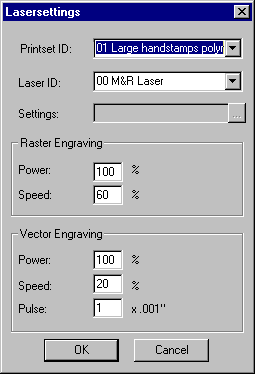
- Raster Engraving sets the way your stamp is engraved
- Vector Engraving sets the way your cutting lines are engraves
Check Tables
Check up your tables on any inconsistencies. This usually only has to be done in case of severe problems. This option may cause deletion of corrupted data!
For advanced ways to repair corrupted tables use the NamoUtil program
Change Logo Path
Moves your logo directory. Typeset uses external logo's to save disk space. Moving a logo to another directory might result in stamps without the specified logo. This option will search in ALL stamps for the old logo path and replace it by the new specified logo path.
This option is only available in the SOSET Gold version!
Pack Tables
No more packing!
Wrong usage of this option causes corruption database tables or massive loss of data.
The packing option in the NamoSys program has been disabled. This option is originally designed to reorganize files and to delete records with deletion marks to create space. Packing takes away the option to check deleted records and restore deleted data in order to solve occurred problems.
Instead we recommend to contact NamoSoft for help with reorganizing files and records.
Preferences
Displays the Preferences dialog box, which enables you to set the settings of you SOSET application.

- SOSET Data Path displays where all stamp-data is stored in your system. Make sure that in a network all SOSET Typeset users have the same setting shown here. This path cannot be changed here it is the first parameter of each SOSET program command-line.
- Ruler Units switches between inches and millimeters.
- (Removed option in NamoSys preferences) Date Order and Date Separator:
SOSET now uses the date setting from Windows. To change the settings in Windows goto the Regional Settings icon in the Control Panel. You can specify the date order (either Day/Month/Year or Month/Day/Year) and the kind of date separator you prefer (either slashes or points). - Barcode labels enables you to set the Barcode labels:
- Columns refers to the number of labels you want to print next to each other.
- Rows refers to the number of labels you want to print vertically on the page.
- Start X and Start Y enters the start position of the bar-code printing (from the upper left of the page). You should define the label width and label height here as well.
- Delta X sets the horizontal whitecap between the barcodes to print.
- Delta Y sets the vertical whitecap between the barcodes to print.
- Modem displays the Modem dialog box which enables you to enter the Preferences settings.

You can set the port, the parity, the baud, the data and the stop bits.(Standard settings for these preferences are: for the parity: none, the baud: 2480, the data: 8 bits, and the stop bits: 1 bit.). These settings normally have to be set only once, since they import/export stamps to the same host.
Note: Make sure that all preferences settings (except for the port: COM1 through COM8, which can be different for every computer) are similar for both the host side and the remote side. The best way to attain matching preference settings between the two operations is to check and adapt these to one another over the telephone.
Query
Creates a new Query or use one of the pre-defined queries. Use the power of your database-system and get all information out of it with a query.
Select a table to analyze, a list with all fields of that table appears. First you select one or more fields to view by double-click or click one of the arrows. If you do not set a filter than you will get a list of all records in the selected database-table.
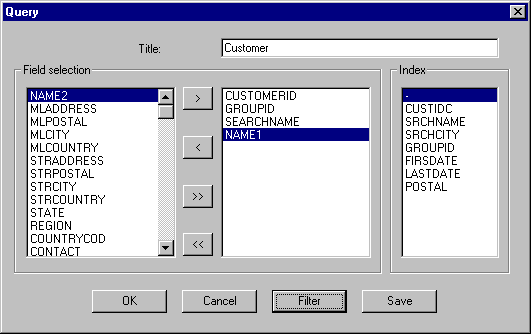
To set a filter highlight one of the fields on the right side of the query-dialog and click the filter-key. You will be prompted to enter a start- and end-value for this field. It is possible to set more than one filter.
SOSET will produce a list on your printer with the specified data. At the same time numeric and data fields are summed and averaged. You can save a query for later use.
In the Overviews menu you will find a user activity query.
Use the NamoUtil program for more advanced utilities to scan and query your databse-tables.
This option is only available in the SOSET Gold version!
Archiving
Offers an efficient way to archive stamps and orders.
There are 2 options for archiving: one for stamps and one for orders.
SOSET keeps stamps in SOSET-type stamp
files, to make search very easy.
Before you start archiving we recommend to have a backup of all SOSET-data files
and that nobody is logged into any of the SOSET programs (including web-site,
using SOSET-via-the-web).
In the appearing dialog you can specify which stamps will
be deleted from the active database and moved to the archive database,
automatically sorted by year.
The Find > Archive command in the Record menu in Typeset enables searching these stamps after archiving.

The order-archiving works in a similar way.
We recommend to accept the default settings from the dialog, which only archives
stamps and orders older than 100 days.
This option is only available in the SOSET Gold version!
Note: The archive-option in SOSET NamoSys
and SOSET NamoUtil are not designed to create space and will only slightly compress data.
In general we do not recommend to delete data and/or files to generate diskspace.
Harddrives come with huge volumespace and database-systems are designed to handle large
volume tables.
Searching for information within SOSET is faster than any other search.
The archive-procedure is meant to get archive-files for each year and to enable you
to retrieve the archived data easily.
The archive-procedure also checks data and correct errors and re-write the job-files,
which improves disc-access and usually optimizes the performance of databases in general.
Note:
Only if you are NOT using the shipping options from SOSET, archiving will
result in only updating the table-information, without archiving any order.
There is a tool available to change the status of stamp-records.
To prepare the stamp-tables for archiving use the NamoUtil option:"SOSET Utils >
Production status update" (to activate use pincode 7676).
When this command has finished you can archive stamp via the Archive option in NamoSys.
Print Barcode Labels
Prints the barcode labels. Barcodes support a fully controlled production process. You enter the first and the last number in the appearing dialog.
This option is only available in the SOSET Gold version!
Contact us in case you have any question or comment via our email