SOSET Help contents
Record Menu in Typeset
This Record or Stamp menu has database-management options.
Remember that you are adding a NEW record to a database-table and NOT creating a NEW file.
New
Edit
Duplicate
Update
Close
Delete
Undelete
Change Sort Order
Find
Go To
Refresh
Print
M&R Laser Engrave
New
Select this command to design a new stamp. Shortcut:  , Ctrl + F8.
This new stamp will be added to the database, after updating
it(select the Update command).
Enter typical data as order-number, searchkeys, customer-information in the New Stamp dialog box. Select the product in the product field and enter the stamp size, shape, color and mount.
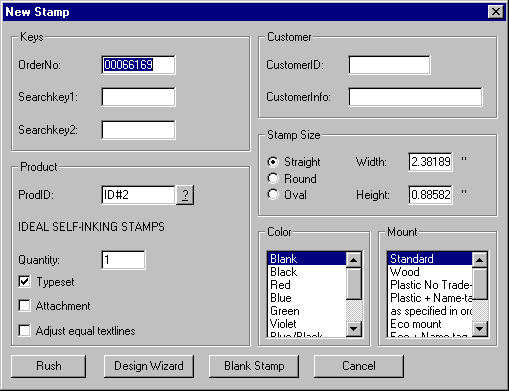
Furthermore you can enter the Quantity and set the most commonly used properties of a stamp.
After this opening entry dialog you will enter the stamp-design using either the DesignWizard.or creating a blank stamp.

Edit
The Edit command activates the current record/stamp,
enabling you to modify its design or properties. Shortcut:  , Ctrl + F9.
All typesetting and record-options
are available now.
Duplicate
With this option you can duplicate a current record/stamp with its design and record-properties into a new order-number. Shortcut: Shift + F9.
The Duplicate stamp dialog box is similar to the New Stamp dialog box. The dialog is already filled with data of the current record/stamp. The quantity is always defaulted to 1.
Note: In this way ALL stamps in the SOSET database can be used as a template for a new stamp.
Update
Finish designing or editing your stamp with the update-option
to write the current design with its properties to the SOSET
database Shortcut:  , Ctrl + F10.
In case you are not satisfied with your stamp design, you simply close the stamp (with the Close command), without updating it. The (last) changes you have made to your stamp design or the entire design (in case you opened a new record/stamp) will not be saved.
Close
This option will end your current stamp entry. If you are well pleased with your stampdesign, you answer yes to the question whether or not SOSET should update your stamp. The stamp will be saved in the Stamp database-table.
In case you are not satisfied with your stamp design, you simply close the stamp, without updating it. In that case the (last) changes you have made to your stamp design or the entire design (in case you opened a new record/stamp) will not be saved.
Delete
This option enables you to delete the current record/stamp in the database. You need to confirm complete deletion of the stamp. Although the design remains on the screen, SOSET will change the status into Deleted. Note that the stamp will not disappear immediately, despite of the fact that it is deleted! See Undelete Command for more information.
Undelete
This option enables you to undelete only the current record/stamp in the database if you change your mind after deleting the stamp. The typeset status of a stamp you undelete and in this way retrieve is by definition set on Entered. You can change this status using the shortcut key: CTRL + X.
As long as the stamp is visible in the design screen you can undelete the deleted stamp with the undelete command. After you start working with another stamp the deleted stamp can only be retrieved with the NamoUtil program.
Before you want to view undeleted stamps in NamoUtil make sure you select the SET Deleted off command in the Options menu in NamoUtil.
In case you want to retrieve a deleted stamp, you choose the Open Table Exclusive in the File menu in NamoUtil and open Stamp.dbf. Browse trough the stamp table to find the required stamp. The first column of the table will display a black field indicating that this stamp is mark as deleted. Click on this checkmark to undelete the stamp.
Note: If you click in the first column on a white field (the stamp is mark as not deleted) the field will become black and thus mark the stamp as deleted. The stamp will not be accessible in Typeset anymore (unless you undelete the stamp again).
Only after running the option Pack tables in the File menu in NamoSys program deleted stamps are definitely ejected from the database (a backup of the original tables is copied to the SOSET\TEMP directory, just in case…).
Change Sort Order
With this option you can change the ( index-) order in which the stamps/records are sorted in the database-table (the checkmark shows the active index). You can choose between an index on:
- Orderno (from low to high)
- Searchkey 1 and Searchkey 2 (both in alphabetical order)
- CustomerID (from low to high)
- Customer Info
- Natural order ('date in', that means the day of entering the stamp/order).
This option is very useful in combination with viewing the Next and Previous stamp option in the Record menu or the browser on the Toolbar.
Find
Displays the Find submenu. Enter one of the offered search-options. You can search on:
- Orderno. Shortcut: Ctrl + F3
- Searchkey 1. Shortcut: Ctrl + F1
- Searchkey 2. Shortcut: Ctrl + F2
- Customer ID. Shortcut: Ctrl + Shift + N
- Customer info. Shortcut: Ctrl + Shift + I
- All of the above mentioned options. Shortcut: Ctrl + Shift + A.
- Archive.
Enables you to search for all stamps made in a certain year. This option shows only a view of all stamps of that archive year. You can not edit while you are in this mode. So it is impossible to create stamps. Copying a stamp is possible, just click the Copy option in the Edit menu and paste the stamp in the original work database.
Once the stamps are found, you will get a selection of all records/stamps that fit to your specifications. A double-click in the list will show the selected stamp on the screen. You can go back to the search results with the Last search results command in the Find submenu.
This option is only available in the SOSET Typeset Gold version!
Go To
A database system needs a browser to go through all saved records, from first to last, from beginning to end and forward or backward.
The Go to-options offer all this. You can go
respectively to the first, the last, the next
and the previous record, simply by clicking the
appropriate menu-item. Using the browse buttons,


 on the Toolbar will have the same effect.
Refresh
This option is intended for useful working in a network environment. If you are in the view mode (so NOT editing! ) in SOSET Typeset, a stamp might have been edited by another user. Refresh the screen to get the latest information.
This option will print the current stamp. This option is
similar to the Print command in the File
menu. Shortcut:  , Ctrl + P
Output includes stamp information (specified in the Local Preferences) and can be used as a proof print for you and your customer. In order
to print more stamps and to have a page-layout made, you need to
start the PageWizard
program.
Users of SOSET Remote Typeset will see a gray background on their printed output, since they do not need production quality.
M&R Laser Engrave
The M&R laser engrave command in the Record menu is similar to the M&R Laser Engrave command in the File menu.
Contact us in case you have any question or comment via our email