SOSET Help contents
Properties Menu in Typeset
In this menu you will find options to set, select and modify the properties of the current record/stamp displayed in Typeset.

You will also find the design mode-options.
Note: All property information will be printed on the run-cards, accurate entry will be of great help to your production. Many of the options in this menu have already been preset upon initial entry.
Searchkey
Size
Color
Product
Printset
Status
Customer
Mount
Quantity
Numbering
Date Area
Info
Exported
Rush
Attachment
Typeset
Mode
Resize
Center all
Scale
Send to
Foreground/Background
Searchkey
These options change the searchkeys and customer information
of the current record/stamp. Shortcut: Ctrl + 1 and Ctrl + 2
Note that the searchkey is always in uppercase. Use simple and
clear searchkeys to enable efficient tracking. In a network
agreements concerning searchkeys are preferable to individual
attributions.

Size
This command displays the Shape & Size Dialog Box, which enables you to change the shape and the size of your stamp. Shortcut: Ctrl + D.

Color
If the product is available in one or more (inkpad) colors, set in the Product-table, you can change the color here. Shortcut: Ctrl + K.
Note: Refer to the NamoSys chapter Structure of the Database-tables for more information.
This option is only available in the SOSET Typeset Gold version!
Product
Select a product from the range specified in the Product-table. Shortcut: Ctrl + R.

If the product size of the selected product is different from the size of the current stamp, you can choose to accept or ignore the new size.
Note: To add or modify products to the product database table, see also: NamoSys.
Printset
Select one of the possible print-categories. Shortcut: Ctrl +
E.
For default the printset category is set as specified in the Product-table.

This option is only available in the SOSET Typeset Gold version!
Status
This option enables you to change the Typeset status of the current stamp. Shortcut: CTRL + X.

Note: Some status-options are set and updated by SOSET automatically during Typeset procedures like printing and shipping.
There is an extra shortcut for the regularly used command: Change status in Corrected: Alt + C
Customer
This option enables you to modify the customer-number and the customer information of your orders. Shortcut: Ctrl + U.

Mount
With this option you specify the mount you want for the
current stamp. Shortcut: Ctrl + M.
Use this option also in case your customer wants its name on the
mount.
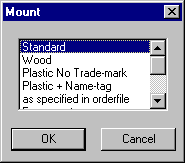
Note: To add or modify mounts go to the Mount-table, see also: NamoSys.
This option is only available in the SOSET Typeset Gold version!
Quantity
When you need more than one stamp you choose the Quantity command. Shortcut: Ctrl + Q.
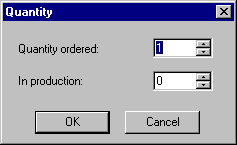
Enter the desired amount of stamps. In the dialog you can enter the Quantity ordered. You also can see and modify the quantity In production.
During printing of All corrected stamps in the PageWizard, SOSET will automatically update the quantity In production.
When the status of a record is reset to Corrected after production, the production of all or some stamps should start over again. In these cases SOSET Typeset will change the quantity In production automatically into 0. So the amount of corrected and ordered stamps will be printed once they are updated to In production.
If a number of stamps has already been produced, you can change the quantity In production. You fill out the number of stamps, which already have been successfully produced. SOSET will print the amount of stamps left! This way, the ordered quantity remains the same, but stamps which have been approved of, are not produced twice.
Numbering
This option offers a unique but very simple solution to produce series of stamps with rising numbers. Shortcut: Ctrl + N.
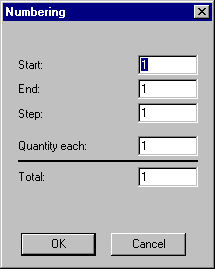
First you place the cursor on the screen to fix the exact position of the numbers to appear. Then you choose Numbering. Enter start and end of the numbers and step sequence. Entering the quantity each will result in a total quantity calculation to check.
After closing the dialog the first number of the series will appear in the stamp design. It is colored red to indicate that this is a numbering field. The stamp, complete with the correct quantities and the numbering sequence, can be called up and printed in PageWizard.
Numbers can only be changed by re-entering the Numbering dialog.
It is possible to have more rising numbers in the same stamp, but they must have all the same start, end and step values.
The numbering field behaves similar as all other texts in a stamp, so typographical properties etc. can be changed at all times. You can change e.g. from straight to circular typesetting as well.
This option is only available in the SOSET Typeset Gold version!
Date Area
For each product in the Product-table you can specify whether this product should have a date-area. Just use the Date-area command.

With this option you can define the exact size and position of this field. The center-option will automatically center the date in the stamp. Naturally you are able to switch off the date-area any time you want.
During editing, SOSET Typeset will show the product including the date-area. This date-area is gray colored to indicate that this space is reserved for the date.
While you design the stamp, you can position the date-area by clicking the mouse and drag it to the desired place in the stamp.
In case you use a flatbed laser which has a laser engrave indicator, PageWizard will automatically cut the date-area.
Info
Displays the Info submenu commands:
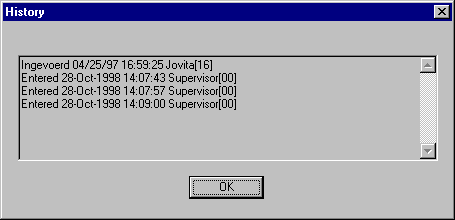
- History shows a list of all-important changes with
date/time and user information. This option is only for
service purpose.
This option is only available in the SOSET Typeset Gold version!
- General Info shows several important stamp-data in
the data-area under the menu bar. If you want to
see all information as stored in the database-table you
use this General Info option. You see the
information or stamp properties per stamp. At bottom
right of this screen you will find a record counter, with
the total number of records in your database-table. Most
of the ID-fields here have a code, which refers to the
appropriate database-tables.

- For the Numbering and Date Area fields a True/False
switch is used, a T here indicates that Numbering
and Date Area is switched on and a F indicates
that these options are switched off. For the PageWizard and Exported fields a T here indicates that the
stamp is in PageWizard or is Exported and a F
indicates that the stamp is not in PageWizard (but in
Typeset) or the stamp has not been exported.
At the bottom of the screen there are 3 buttons. Press the OK button to leave this screen. Press History to see the history of the stamp ( this option is equal to the History command in the Info submenu) or press Stamp to view the technical data of the stamp (it is NOT recommended to edit any of these values).
- Note: behind Quantity you will find two values: the first for ordered and the second for printed quantity.
- This option is only available in the SOSET Typeset Gold version!
- Note enables you to put a note on to a stamp. This note will be displayed when you edit a stamp. On the runcard the word, INFO will be printed to indicated that this stamp has additional information.
Exported
If you use the options for importing and exporting stamps (in the File menu) for remote entry, you will find that every exported stamp at the remote side has an export switch. This way a stamp can only be exported once. Choosing this option will reset the switch so the stamp can be exported again.
This option is only available in the SOSET Typeset Gold version!
Rush
Most rubber stamp manufacturers (AND THEIR CUSTOMERS!) rush all orders. SOSET offers a nice way to draw extra attention to rush stamps.

A stamp has the No rush status, by default. Select this option in case you want to assign a rush-status to the current stamp. The current stamp gets a marker. On the screen a stamp with 'Rush' status will show a yellow border. A stamp with 'Rush 24 hours' will show an orange border. A stamp with 'Rush 48 hours' will show a red border.
During page-layout in the PageWizard all stamps with a rush-status, receive the same mark as in Typeset, to enable special rush treatment.
This option is only available in the SOSET Typeset Gold version!
Attachment
When customers send you an order for a new stamp, they sometimes include a selfinker or mount, for re-use. Often this is forgotten at the moment that you start producing the stamp. The attachment setting will inform you about the attachment on the run-cards and/or the production-overview.
It is advised to code the attachment with the order- and item number, on entering the order and to send it already into production, where it awaits final mounting.
This option is only available in the SOSET Typeset Gold version!
Typeset
SOSET Typeset software works in perfect harmony with SOSET OrderEntry.
While SOSET OrderEntry software covers ALL orders, SOSET Typeset software is actually designed to handle production orders only and NO stock orders.
However, to enable full production and shipment control in SOSET Typeset software the Typeset option is added. This way stock orders can be included in the order execution.
A stock-product can be entered in the Product-table. For this product the Typeset-property is set to F (= False), a Typeset-product is normally set to T (= True) to enable designing the stamp.
During every Get all entered stamps print-procedure in PageWizard the records with the Typeset = False setting are excluded from the page-layout. The (stock) run-cards for these order-items are being printed all the same.
Mode
You can set the design mode in the Mode option in the Properties Menu, as well as on the Toolbar. You can switch from text mode to graphical mode, in order to respectively write or draw objects. The mode-options are described in brief below. For more information see Design a Stamp Manually.
- The Text option,
 enables you to insert any text
you want in your stamp design as long as the selection
mode in turned on (the
enables you to insert any text
you want in your stamp design as long as the selection
mode in turned on (the  on the toolbar is highlighted).
 - The Lines,
 option enables you to draw
perfect lines in your stamp design.
option enables you to draw
perfect lines in your stamp design. - The option Boxes,
 enables you to draw perfect boxes
in your stamp design.
enables you to draw perfect boxes
in your stamp design. - The Ovals,
 option enables you to draw
perfect circles or ellipses in your stamp design.
option enables you to draw
perfect circles or ellipses in your stamp design. - The Curves,
 option enables you to draw curves
in your stamp design.
option enables you to draw curves
in your stamp design. - The option Logo's,
 enables you to insert any logo
you want in your stamp design.
enables you to insert any logo
you want in your stamp design.
Resize
Very often you do not know the exact size of the stamp, when
you start typesetting.
SOSET Typeset solves this for you. It finds the bounding
of your text and changes the size of the stamp into the found
values. Shortcut: Ctrl + Shift + S.
The justification as specified for this stamp will remain the same, so centered text will still be centered after this option.
Use this option in combination with the vertical justification option in the Text menu to simplify your Typeset.
Warning: Remember that this option only takes entered text into account. So you can not resize borders and (other) graphical objects with this option.
Center all
This option enables you to center all text in your stampdesign, with a single keystroke.
This option is only available in the SOSET Typeset Gold version!
Scale
With this very powerful option you can scale the complete design. This option also scales the cutting lines for laser engraving if specified.
Determine the scale percentage with the Scale option also in case the stamps from a certain Printgroup don't fit on one page-layout in PageWizard.
This option is only available in the SOSET Typeset Gold version!
Send to Foreground/Background
You can move any object to the foreground or the background in your stamp. This way you can easily put for instance a textline in front of a drawing line.
In case you need a textline with a filled box at the back, this option is very helpful. You draw a filled box. Next to it you draw a line at the desired position of the text and make sure it is white. Now you can enter text, overwriting the white line. You should send the filled box to the back, using the option in the Properties menu.
This option is only available in the SOSET Typeset Gold version!
Contact us in case you have any question or comment via our email