Adding and Editing data
Add or Edit a Company
Enter or Edit Customer data
Enter or Edit Product data
Enter or Edit orders
Typeset a stamp
Shipping orders
Invoice orders
Invoice
View reports
Building a query
Printing data
Working with Barcodes
Archive orders
Typeset Information
Add or Edit a Company
After selecting the Company option from the Maintain menu, you view the existing companies in a dialog. You can choose to add, edit or delete a company.
To create a new company, you click Add, in case you want to edit company data, select a company and click the Edit button. The company dialog box will appear.

Most of the data fields are self-explanatory.
CustomerID cash order.
When you add an order-item to an order and you are not in the order edit mode the
customer you specify here is selected. If you leave this field blank you first have to
enter the customer before entering an order-item.
Enter company data and close the new company. On closing, SOSET will ask you the following question "Do you want a local environment with its own order databases?" Choose Yes in case you want to have a separate database for the new company. SOSET automatically creates a subdirectory on the basis of the entered CompanyID (in digits) and the SOSET DataPath refers directly to this subdirectory. Choose No if you want to integrate the database of the new company into the one of the existing company (or companies).
You can delete a company. However, this option should be used with care! In case you delete an existing company, you only delete the company data, not the customers, orders or products.
After adding a new company to the SOSET OrderEntry system, you can select Open Company from the File menu and open this newly entered company (when you use more than one company, you have to select a company when you start OrderEntry).
Note: You can only open one company at the time so if you want to open a new company, you have to close the active company first.
The SOSET software comes with product databases with necessary basic information. There is no need to change this information. However if you want to add products, make sure you have created product groups and account ID's to enable updating your new product. So basically the first thing to do is to enter customers. However, before you can do so, you have to enter some basic information.
First you have to create (that is: enter) customer groups, discount options, product groups, account ID's, way of shipment options, tax options, and term options. These options are all very specific to your company. You will see that NamoSoft SOSET already provides several common and general mount options, color options and printgroups.
Select the appropriate option from the Maintain menu in SOSET OrderEntry and click Add to add new records. The File menu has import- and export options, to enable you to import data from the databases of the existing Demo Company or any other database.
After this, you switch to the Customer screen. Now you can select the New command from the Customer menu.

Enter or Edit Customer data
After selecting Customer from the Maintain menu or
click the C-button,  on
the Toolbar you enter the Customer screen.
on
the Toolbar you enter the Customer screen.
Data entry in the Customer screen.
The browse arrows on the Toolbar enable you to view all
entered customers that have been saved in the SOSET database. To create a new
customer select the New command in the Customer menu(shortcut:  , Ctrl + F8). The following question
appears on screen: "Do you want to add a new customer?" If so, choose
Yes.
, Ctrl + F8). The following question
appears on screen: "Do you want to add a new customer?" If so, choose
Yes.
SOSET provides you with a successive customerID. You are prompted to enter a customergroup (these groups and its settings can be viewed, edited and deleted with the customergroup command in the Maintain menu).
You assign a customer group to the new customer, by selecting one of the existing customer groups. In case you want to copy customer group data to the current customer, choose yes on the question "Copy customer group settings?"
While editing a customer you can search for another customer by clicking the C-button,
on the Toolbar.
Now, you can edit one customer and view another one. Switching between them is possible by
using the cascade or tile options from the Windows menu. The number of customers to view
is kept limited on purpose, to avoid confusion.
In case you want to close a customer, you click the X-button on the right of the customer screen (not on the upper right of the SOSET OrderEntry screen, which will close OrderEntry completely!).
You can go to the other fields in the screen by using the Tab-key.
The customer information contains information about:
- Customer name
- Main address and Mail address (both consisting of address, postal, city, state and country) After entering the main address you can go with the Tab-key to the mail address. In case this is the same: simply Tab through the fields. The same address as filled in as main address, will appear.
- Telephone number
- Fax number
- E-mail number.
- Next to the customer name and customer group, you can enter one more name for your customer: Customer name 2.
- Contactperson, which is valuable information to enhance your customer service in case of questions or problems.
- Salesman (by default the name of the person who enters the customer in the computer, but all registered usernames can be filled in here).
- Searchname is the same as the first six positions of the entered Customer name.
- Search city is the same as the first six positions of the entered Customer city.
You can check the following options: quality control, no price on forms, order confirmation, quantity discount and invoice to file.
The (credibility) status of a customer can be viewed and adjusted when necessary. Enter the appropriate discountID (with its belonging properties), you subsequently can view after pressing the More-button. The preferred freight option has to be entered here.
On updating your customer, SOSET asks you to verify the discountID.
Now you can assign an order to this customer, by clicking Order from the Maintain menu).
More button.
This button opens a dialog box in which you can enter or view information
concerning Terms, Typeset, DiscountID groups, SalesInfo
(including order entry history) and when order will be shipped (Shipping every
...-day)
You can view the various payment/delivery terms, like the Chamber of Commerce number, the taxes, the credit terms and credit limit. You also can view the various discounts, per product group.
Next to it, you can enter some default typeset information, concerning what mount and what color the customer prefers. Information is given concerning the total sales (history and present) and the first and last order until now. You also have to enter the shipping frequency here by checking the shipment days in the 'Shipping every' section. You can enter here information about: the way of shipment, and the way of invoicing to ensure a smooth order flow.
Invoicing button.
This button opens a dialog box in which you can enter information concerning the way of
invoicing. You can select the preferred Invoice address. You have the option to
send the invoices to the mail address of your customer, to the mail address of an other
customer, or you can enter the invoice address here. Furthermore you can select from
different Invoicing options and you can determine the Invoice frequency.
Enter or Edit Product data
SOSET is standard being supplied with a great number of pre-defined products, that can be viewed as single records, one by one, with the Browse arrows on the Toolbar in the Product screen (select Product from the Maintain menu). This means SOSET provides examples and database-files with a basic setup and a lot of product information about selfinkers, pre-inked stamps and other stamp products.
In case you want to edit, add or delete products or its properties, you are free to do so. However, make sure that your information is correct and consistent to avoid confusion! The data-entry will be considerably facilitated in case you decide to let SOSET copy all product group settings to your new product.
To enter a product, you must be in the product screen. To get there select
Product from the Maintain menu. Another option is
that you push the P-button,  on the toolbar.
Data-entry in the Product screen.
The browse arrows on the Toolbar enable you to view all entered products. You
can enter a product by using the keyboard shortcut CTRL +F8 from the Product screen. You
can also select the New option from the Product menu or the New Product
button on the Toolbar.
While editing a product you can search for another product by clicking the P-button. Now, you can edit one product and view another one. Switches between them can be achieved made by using the Window options to cascade or tile the open windows. The number of products to view is kept limited on purpose, to avoid confusion.
In case you want to close a product, you click the X-button on the right of the Product screen (not on the upper right of the SOSET OrderEntry screen!). The Product screen gives you a full screen view of all product info. You can go to the other fields in the screen by using the Tab-key.
You are prompted to enter the ProductID first. Next to the productID, you enter the product description. Defining a product searchkey facilitates retrieving the product from the database-table. Assigning a customer group to a certain product enables you to adjust the settings of a product to the special wishes of your customer.
You assign a product group to the new product, by selecting one of the existing product groups. In case you want to copy the product group data to the current product, choose yes on the question "Copy product group settings?". The print group has to be entered here.
The following options have to be checked, if applicable: Typeset property, charge freight, pad color, mount, discount, quantity discount and discontinue.
You also have to enter the following numbers: the supplierID, the purchaseID, the warehouseID, and the statisticsID.
You can search for and subsequently enter the appropriate accountID and its description.
The number of products in stock and the total amount ordered is given. The reorderlevel is being displayed. This refers to the following. As soon as this entered number of products in stock is touched you have to reorder. You can also enter the pagenumber of your catalog the product can be found.
Based on the fact that it is very difficult to keep inventory information in most
rubber-stamp companies up to date, we have implemented the Cycle Count
option. In the Cycle Count field in the product-data-screen you enter the date on which
you counted the inventory of this product. It is advised to count critical products more
often.
On a regular base you can create a query, which filters products counted before X date
e.g. In that way you keep the inventory information in SOSET's order entry screen on a
very reliable level.
Important: When the reorder level is set to zero (0) the number of products in stock is NOT being updated when this poducted is ordered
Pricing can vary from price 1 till price 5; in other words there are five pricelists to choose from. The product width and height, as well as its shape, its thickness and its weight complete the product information.
The More button shows the total sales information of the active product (history and present), the total amount of products sold last year and this year, and the first and last order.
The Date area button informs you about whether or not the active product has a date area and its height and width and it gives the coordinates of the default position in the stamp.
Enter or Edit orders
After selecting Order from the Maintain menu, you enter the Order screen. You
can also click the O-button,  on the Toolbar.
The browse arrows on the Toolbar enables you to view all entered orders. You can press
CTRL + F8 to create a new order, select the New option from the Order menu or click the appropriate New Order button, .
While editing an order you can search for another order by clicking the O-button,
on the toolbar. Now you can
edit one order and view another one. Switches between them can be achieved by using the Window
options to cascade or tile the open windows. The number of orders to view is kept limited
on purpose, to avoid confusion. In case you want to close an order, you click the X-button
on the right of the Order screen (not on the upper right of the SOSET OrderEntry
screen!).
To enter an order select CTRL + F8, from the Order screen in SOSET OrderEntry
(this screen appears after selecting Order from the Maintain
menu. Another option is that you push the O-button, on the toolbar. You can select the New
option from the Order menu to assign a new order to a
customer or the New Order, button on the toolbar. On your screen
the SOSET New Order dialog box appears.
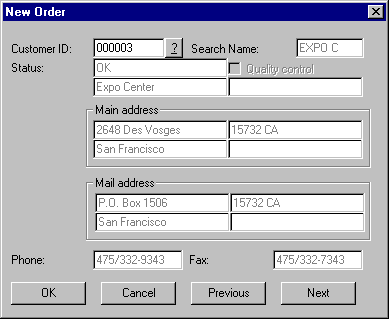
In here you can enter the Customer number, that you want to assign a new order to and view the Customer name (and its credibility), the telephone number and the fax number. In case the displayed customer is not the appropriate one, you can select the last or the next customer in your database. You can also click the question-mark. Now you can start a multiple search on customer number, customer searchname, customer city, postal code and customer group. Next, you enter the order.
A number of options are set in the Customer screen or Product screen. However in the Order screen, you can overrule all these options. Check the following boxes on screen if they are applicable: No price on form, Order confirmation and Quality check.
You can select the field in the Order screen using the TAB-key.
You need to specify information about the order. You are prompted to enter the ordernumber first. At that position you can also leave the ordernumber SOSET provides you with.
Next you may enter references to ease tracking of the order during production. In the Reference field you can enter precise information, regarding: reference 1 and reference 2, order number, productID, Department, WarehouseID, and by whom the order (product) has been purchased. Reference 1 and reference 2 will be displayed on the printed order forms.
Order date and Shipping date are automatically filled in. The order date is the present-day and the Shipping date depends on the settings, set in the Preferences from the File menu. In case you enter a different date, indicating that the order should be rushed, SOSET automatically changes the rush code into the appropriate code. In Typeset rush stamps have either a red (rush 24 hours), an orange (rush 48 hours) or a yellow (rush) border on screen.
The information entered in the internal memo field is for internal use only. You can enter important messages concerning the current order to other SOSET users, for instance to draw extra attention to certain order(item)s. The information entered in the external memo field will be displayed on the run cards as info.
You add orderitems to the current order by pressing CTRL + A. The orderitem box shows from left to right: the orderitem number, the productID, the quantity, the product description, the price, the discounts and the net price.
You enter the ProductID (defined in the Product entry screen and saved in the Product database table). If you do not know the appropriate code you select the question-mark next to the ProductIDfield. The product-information of all products is subsequently being displayed in a dialog. Just enter a productID in the appearing box. You can also browse through the Product table with the Browse buttons, under the ProductID field.
If the required product is not listed, you can enter new product-information via the Browse Tables option from the File menu in the SOSET Namosys program or in the Tables option from the Maintain menu in the OrderEntry program. This list with product-information specifies your order information as well as your stamp-design. Once filled out, you leave the box by clicking the OK-button.
When you later decide to change the ProductID in SOSET Typeset, SOSET Typeset asks you explicitly whether you want to replace the current size with the size of the product chosen. This in order to avoid unintentional changes of the text features. You have to take notice of the fact that the productID is the same in the OrderEntry and Typeset.
After your selection, the properties of the product appear in the dialog and become the basic properties for your current stamp design. Some of these settings may be modified or require your choice from e.g. available colors. Enter the required quantity. In the dialog you can select the color and the type of mount of the stamp you want to design. You can check Freight (in case freight costs have to be charged) and Typeset (in case it is a Typeset product, but the latter is already done automatically. The Discounts are numbered from 1 through 3: %1 = the discount dependent on customer, %2 = for additional discount options and %3 = Quantity discount.
Save and update the order by pressing CTRL + F10 or pushing the update button,  on the toolbar. This will store all
data in the database-table.
on the toolbar. This will store all
data in the database-table.
After entering (a number or all of the) orders, you select the option Process entered orders from the Tasks menu in the Order screen to start the order/production process. Note that the orderstatus changes from Entered to Processed.
If you want a hard copy of the current order, select from the File menu the Print-option. This print option enables you also to print an order confirmation and a packing list for the active order.
Typeset a stamp
In case you have entered an order that has typeset orderitems, you can switch directly to SOSET Typeset to design the stamp(s). SOSET OrderEntry is directly linked to SOSET Typeset. Immediately after updating an entered order with typeset items in SOSET OrderEntry, you can find this order in Typeset. By pressing the Typeset button on the toolbar, you open SOSET Typeset. If you want to switch between. OrderEntry and a Typeset document, you are advised to use the minimised Typeset application window in the Windows taskbar.
With CTRL + F3 you can find an order on ordernumber. The stamp will be displayed on screen as defined during order entry.
In Typeset you can choose between editing the stamp from scratch or designing the stamp with the DesignWizard. To edit a blank stamp: press CTRL + F9. This will allow you to typeset the stamp using all the parameters you have first entered along with default typographical settings. You can modify the size (read net design-area) of the stamp. During page-design (for final output). In case you want to modify the size of a stamp, you should consider whether the selected product offers enough space for the desired size. A selfinker, of course has limitations to the size of the stamp. You can also decide to let the DesignWizard design your stamp. In that case select the DesignWizard button on the toolbar.
In case of an attachment, that means a customer has send you for instance a mount together with the order, you have to mark Attachment in the Order item dialogbox in SOSET Order Entry. In SOSET Typeset the 'attachment' property will be checked as well. SOSET will notify you by printing 'attachment' on the run cards.
The typeset status can be viewed in the orderitem box in the SOSET OrderEntry. Each typeset partnumber has its own typeset status.
After designing and updating a stamp in SOSET Typeset, the status of the stamp becomes Entered. After designing several stamps, you start the SOSET PageWizard and select the Get all entered stamps option from the File menu in PageWizard. All stamps subsequently are laid out on a page on screen. You can view the contours only, or view a stamp or all stamps with its text and design.
After printing the stamps, the status Proofreading will be assigned to all printed stamps. Next you return to SOSET Typeset and correct (if necessary) the stamps with the status Proofreading. After manually attaching the Corrected status to these stamps in SOSET Typeset, you switch to SOSET PageWizard again. Now you select Get corrected stamps from the File menu in PageWizard. Again the stamps are laid out on page. You can change this layout, but this is not necessary, since SOSET PageWizard is designed especially to make page layout as efficient but also as simple and time saving as possible. SOSET asks you to change the status from Corrected to In production. Production can start now by printing or laserengraving the page(s) with stamps. Run cards or a production-list can be printed to ensure an efficient orderflow.
Refer to the SOSET Typeset manual or on-line help for more elaborated and detailed instructions concerning the usage of SOSET Typeset.
Shipping orders
For efficient shipping you are advised to store ready stamps in bar coded boxes along with the run cards.
In the Customer screen you can enter the preferred way of shipment. Behind the More button you can enter the shipping days and the delivery/payment terms.
In the Order screen you select the button Shipment: This button opens a dialog box in which you can select the Shipping address (name, address, postal, city and country). You have to check whether this address is the mail or main address of the customer or the mail or main address of another customer. You can also enter a shipping address. Furthermore you have to enter the Way of shipment and the Shipping tracking number. The option 'Best way' as way of shipment, lets SOSET decide what way of shipment is the best way, depending on weight, order amount, etc.
With the General preferences from the File menu you open the General Dialog box in which you can set the following shipment defaults. You can enter the days in, referring to the standard number of days between entering an order and shipping it. Enter the preferred way of shipment. You can set at what order amount you no longer charge freight. The C.O.D.-charge refers to the costs you charge when you send goods cash on delivery.
All settings can be overruled per customer or order.
Shipment.
The Change Status into In Box option from the Tasks menu
enables you to change the status of order-items into In Box and will print a list
of all items.
You enter the OrderID and partnumber and the Box number As soon as all order items are reported In box, the order is ready to ship. Simply scan (or manually enter) both barcode on the box and the run card. The status in the computer now reads In box and if the entire order is completed (including all orderitems): Ready to ship.
Use this option even when you do not use bar-coded boxes. The shipping list will not only show customer and orderinformation, but also the boxnumber in which the products are stored.
With the Change Status into Ready to Ship option, you can change the status of order-items from In box into Ready to Ship. A list will be printed of all relevant items. In the appearing box you enter the shipping date and whether you want information about the large shipmentrun or the small shipmentrun. The large shipmentrun includes all orders that have been entered and should be shipped at one time or the other. Last mentioned list will include all rush orders. A list of forgotten rush orders is printed as well. The small shipmentrun includes only the orders that are ready to ship.
In other words: the first refers to the orders that have to be shipped. The latter refers to the orders that can be shipped (are ready for shipment).
The shipping list will not only show customer and orderinformation, but also the boxnumber in which the products are stored.
With the Change Status into Shipped option from the Tasks menu, you can change the status of order-items from Ready to Ship into Shipped and a list of all relevant items will be printed.
The shipping list will not only show customer and orderinformation, but also the boxnumber in which the products are stored.
With the File menu Restore option Redo Shipment run, you can redo a shipment run. this option should be used with care and only in those situations were something went wrong with the shipment. Examples are a power outage or a printer fault, so that the shipping list could not be printed
Selecting the File menu Restore option Redo shipment run results in a set back of order status (from Shipped to Ready to ship), freight costs that are removed again. In short: everything will be exactly the way it was before the shipment run was started.
All stamps are sorted per order and per customer-number. If the stamp is only part of an order, SOSET waits for the order to be completed, before listing it as In box. It is only then that these orders are labeled with the Ready to ship status.
Now you can start packing with help of the shipping list. Selecting the option Print shipping list will produce a list with shipping information, including the scanned box numbers, weights and other key production information.
Once the orders are packed and ready to ship, you can change the status of all Ready to ship orders to Shipped. In order to do so, select the Change Status from Ready to ship into Shipped option from the Tasks menu in the Order screen. Now invoicing can begin.
In case the shipping/invoice address is unknown, SOSET will print 'Address unknown' on all documents (packing lists, invoices, run cards, etc.) to alert you to this situation.
Special situations in relation with SOSET-via-the-web orders:
SOSET-via-the-web charges shipping and packingcosts for customers
with a status: Internet-Customer
Therefore it will not calculate the costs again during the
shipping-procedure in SOSET order-entry!
Language: based on the chosen language during a SOSET-via-the-web session and thus the language-setting field in the customer-table, the shipping and other documents are printed in the chosen language.
Invoice orders
In the Customer screen you can determine the default invoicing procedures per customer. Choose one of the invoicing options. You can select between 'Batch invoicing' and 'Direct invoicing'. Both options enable you to choose between '1 order per invoice' and 'All orders on the same invoice'. You can also select 'Shipment invoicing'. That means you want the invoice to accompany your shipment. Here you can choose between: '1 order per invoice', 'All orders on the same invoice' and 'Cash on delivery'. Finally you can select 'Cash order' as invoice procedure.
You have to enter the invoicing frequency yourself. You can choose between '1 day', '5 days', '10 days', '15 days', '30 days', '45 days' and '60 days'. The frequency number is merely a way of grouping orders for invoicing and doesn't have anything to do with a daily, weekly or monthly invoice routine (thus the frequency numbers does NOT specify "end of the week" or "end of the month" invoicing). Every time you start an invoicing session, SOSET invoices orders with the same invoice frequency altogether.
The financial status of a customer can be viewed in the Customer screen. You can choose between OK, Embargo, Credit hold, Shipping block, Order block, Check with accounting, and Closed.
Behind the More button you should select the payment/delivery and credit terms. The button Invoicing opens a dialog box in which you can enter information concerning the preferred invoice address. You have the option to send the invoices to the mail address of your customer, to the mail address of another customer, or you can enter the invoice address here.
In the General preferences from the File menu, you can set the following standard information. The C.O.D.-charge refers to the costs you charge when you send goods cash on delivery. With the number of days you enter behind Embargo you set limits to the number of days an invoice is unpaid, but the credibility status of a customer remains OK. In case of customers that have orders outstanding, for as long as e.g. 60 days, the status of those customers changes from OK to Embargo. The default Account ID will be allocated to those sales, in case of products that have no attached account ID. You can set here the default Account ID of debtors.
In case of customers with a discount on the total invoice amount, this discount total stands in the books at a value of the here entered Account ID of invoice discount. All defaults can be overruled per customer or order.
In the Order screen you click the Invoice button to enter the invoice address and invoicing procedure and you can determine the invoice frequency in case of any differences from the default invoice information of your customer.
In case the invoice address is unknown, SOSET will print 'Address unknown' on all documents (invoices, packing lists, run cards, etc.) to alert you to this situation.
Invoicing
You have entered the preferred invoicing procedure in the Customer menu.
In general it goes that, once the orders have the production status Shipped, they then have the invoice status 'Ready to bill', using one of the Invoice options from the Tasks menu in the Order screen from your OrderEntry.
As mentioned above you can choose from several invoicing options. You can start invoicing even as soon as the orders are Ready to ship. In order to do so, you have to select Shipment invoicing as preferred invoicing option in the Customer screen. In case you want to ship an invoice next to a packing list with the stamps/order to your customer.
In the Tasks menu you can select an invoicing option to invoice your orders and receive printed proof of it at the same time.
You can invoice only the current order, or you can invoice all orders.
When you invoice the current order or all orders (with the Invoice status 'Ready to bill'), the orders receive the invoice status 'Invoiced'. An invoice will be printed next to the SOSET OrderEntry invoicable orderlist and the SOSET OrderEntry Sales journal. The SOSET invoicable orderlist gives an overview of all orders to be invoiced. The SOSET OrderEntry Sales journal is the report you use for your accounting system.
In case you invoice all orders you can choose between batch invoicing and direct invoicing. With the Batch invoices option you can choose to invoice and print only the batch invoices. In the dialog you select the invoice frequency. This is the preferred number of days between invoices can be sent to your customer.
Every time the bookkeeper starts an invoicing session, SOSET OrderEntry will involve only those orders with an invoicing frequency between the time interval of the actual invoicing.
With the Direct invoices option you can select to invoice and print the direct invoices. Now you choose to have all orders invoiced and printed with the label Direct invoicing, that means invoicing procedures are done every time an invoicerun is performed.
You also can invoice and print the invoices of either all customers or on CustomerID or on Customer group. You can search on customer(group) and customer(group) ID. Clicking the OK-button, starts the invoicing and printing process.
In case you want to start batch invoicing, but there are also orders that acquire direct invoicing SOSET gives the following message: "There are invoices to invoice direct. Please invoice these first."
With the Print Invoices option from the Tasks menu in the Order screen, you can print invoices On Invoice run or On Invoicenumber. For information concerning the contents of an invoice
The option Update history is to be used after an invoice run to keep all sales information up-to-date.
In case you need to Restore an invoice run, you select the General File menu Restore option (only available in the Order screen). Selecting this option will put everything back exactly to the way it was before you started invoicing.
Invoice
Your invoice contains the following information:
Invoice address, if known to SOSET, otherwise you will find here 'Address unknown'.
Invoice number, the customer number, and the date of invoice.
Products, the Number of ordered products, Poduct description, the price, discounts, and the amount per order line. These are given per ordernumber, with the charged freight costs.
Subamount (exclusive taxes) is calculated as well as of course the total amount (including taxes).
Finally, the applicable terms are stated.
In case of more than one page, the total amount will be automatically transported to the next page.
View reports
SOSET OrderEntry enables you to take a (over)view of your orderflow through extensive report options. SOSET reports on your customers and your orders.
There are options to get a full report of your customers and your orders.
In the Reports menu in the Order Screen you have the following order report options.
Rush Orders.
Prints a report of rush orders. In the Overview rush orders dialog box that
appears after selecting this option you are prompted to enter information. You have to
specify the range concerning: CustomerID, Date, AccountID and ProductgroupID. This
includes the length of time. Furthermore you have to decide whether you want to print all
orders or only the rush orders and if you want to have a full or brief type of list.
Production control.
Prints a report of the production control. In the Overview production control
dialog box that appears after selecting this option you are prompted to enter information.
You have to specify the range concerning: CustomerID, Date, AccountID and ProductgroupID.
Furthermore you have to decide whether you want to print all orders or only the rush
orders and if you want to have a full or brief type of list.
Shipped orders.
Prints a report of shipped orders. In the Overview shipped orders dialog box
that appears after selecting this option you are prompted to enter information. You have
to specify the range concerning: CustomerID, Date, AccountID and ProductgroupID.
Furthermore you have to decide whether you want to print all orders or only the rush
orders and if you want to have a full or brief type of list.
Entered orders.
Prints a report of entered orders. In the Overview entered orders dialog box
that appears after selecting this option you are prompted to enter information. You have
to specify the range concerning: CustomerID, Date, AccountID and ProductgroupID.
Furthermore you have to decide whether you want to print all orders or only the rush
orders and if you want to have a full or brief type of list.
Outstanding orders.
Prints a report of outstanding orders. In the Overview outstanding orders
dialog box that appears after selecting this option you are prompted to enter information.
You have to specify the range concerning: CustomerID, Date, AccountID and ProductgroupID.
Furthermore you have to decide whether you want to print all orders or only the rush
orders and if you want to have a full or brief type of list.
Invoicable orders.
Prints a report of invoicable orders. In the Overview shipped orders dialog box
that appears after selecting this option you are prompted to enter information. You have
to specify the range concerning: CustomerID, Date, AccountID and ProductgroupID.
Furthermore you have to decide whether you want to print all orders or only the rush
orders and if you want to have a full or brief type of list.
In the Reports menu in the Customer screen you have the following customer report options.
Customer Info.
Prints an overview of entered customer info. With the New customer option in
Customer menu you can print a report of the customer info of new customers.
With the Non-ordering customers option you can print a report customer info of non-ordering customers.
In other words, you can have a list printed of all new and non-ordering customers. You simply specify the time range you want to view, by entering the appropriate range in the from ... to ... field in the date selection dialog box.
History.
This option offers you a printed report of the sales history of your customers. Make
sure you have an up-to-date sales history report. Select the Update history option
from the Tasks menu in the Order screen to have the latest sales information shown
here.
With the Total sales option you can print a report of total sales.
With the Total sales option you can print a report of total sales.
In the appearing dialog box, you have to make the following History Selection: select (either) the customerID, the Date, the CustomergroupID, the ProductgroupID and the SalesmanID.
You are also prompted to specify the range you want to view: enter the relevant information in the from ... to ... fields.
With the Sales per productgroup option you can print a report of sales per productgroup.
In the appearing dialog box, you have to make the following History Selection: select (either) the customerID, the Date, the CustomergroupID, the ProductgroupID and the SalesmanID.
You are also prompted to specify the range you want to view: enter information in the from ... to ... fields.
With the Sales per customer option you can print a report of sales per customer.
In the appearing dialog box, you have to make the following History Selection: select (either) the customerID, the Date, the CustomergroupID, the ProductgroupID and the SalesmanID.
You are also prompted to specify the range you want to view: enter information in the from ... to ... fields.
With the Sales per customergroup option you can print a report of sales per customergroup.
In the appearing dialog box, you have to make the following History Selection: select (either) the customerID, the Date, the CustomergroupID, the ProductgroupID and the SalesmanID.
You are also prompted to specify the range you want to view: enter information in the from ... to ... fields.
With the Sales per salesman option you can print a report of sales per salesman.
In the appearing dialog box, you have to make the following History Selection: select (either) the customerID, the Date, the CustomergroupID, the ProductgroupID and the SalesmanID.
You are also prompted to specify the range you want to view: enter information in the from ... to ... fields.
In case you need more or different information, you yourself can make a report by building a query (please refer to the appropriate section for instructions).
Building a query
To obtain more detailed and specific information concerning your orderflow, processing, you can build a query. With a query you can use the power of your database-system and get all information out of it. Create a new query or use one of the pre-defined queries.
Select the Query option from the File menu in SOSET Namosys.
Select the table to analyze and list with all fields of that table appears. First you select one or more fields to view by double-click or click one of the arrows. If you do not set a filter you will get a list of all records in the selected database-table.
To set a filter highlight one of the fields on the right side of the query dialog and click the filter-key. You will be prompted to enter a start- and end-value for this field. It is possible to set more than one filter.
SOSET will produce a list on your printer with the specified data. At the same time numeric and data fields are summed and averaged. You can save a query for later use. In the Overviews menu in NamoSys you will find a user activity query.
Printing data
You can get a printed output of almost all SOSET processes, to give you a full view of your SOSET OrderEntry management.
Print bar-code labels for boxes.
In case the bar-coded sheets SOSET provides you with are insufficient or
otherwise not applicable, you can print your own bar-codes on pre-adhesive sheets. Select
the Print barcode labels option from the File menu in Namosys. Enter a start
and an end value.
Print bar-code labels for order forms.
This option from the Tasks menu (in the Order screen) enables you to print
bar-code labels for Internal use only or On customer, for external use by
your customers. In case you choose 'Internal use', SOSET will print order numbers
with bar-codes in successive order. In case you select 'On customer' you have to enter the
customer number. Labels will be printed with the customerID and the successive order
numbers. Make sure the print settings are set correctly with the Preferences, Printers
from the File menu.
Print current screen.
CTRL + P is the keyboard shortcut for the Print option from the File
menu. This will print the current (or all entered) orders, the order confirmation (if
checked) and the packing list of the order (in case you are in the Order screen). In the
Product screen CTRL + P will print the current product.
Print packing list.
Processing the entered orders (an option from the Tasks menu in the Order
screen) will print the packing lists of all entered orders, including order confirmations
(if checked).
Print run cards.
You can print run cards with the option Process entered orders from the
Tasks menu, which next to processing the entered orders automatically prints run cards
for stock items. A run card for typeset items will be printed by PageWizard, after the Get
corrected stamps run.
Print shipping lists.
With the Shipment options from the Tasks menu (available in the Order
screen), you not only change the status of your orders, but you print a shipping list as
well. Selecting Ready to ship from the Shipment options gives you the choice
between a large or a small shipment run. Next to a shipment list and a packing list, SOSET
prints a label with the shipping address and a forgotten rush order list.
Selecting the option Shipped prints a shipped order list of the orders that are ready to ship. The status is automatically changed from Ready to ship into Shipped.
Print reports/overviews.
You can print order overviews from the Reports menu (available in the Order
screen) of rush orders, production control, invoicable orders, shipped orders, entered
orders, and outstanding orders.
You can print customer overviews from the Reports menu (available in the Customer screen) of new and non-ordering customers and reports of total sales and sales per product group, per customer, per customergroup, and per salesman.
Print invoices.
With the Invoice options from the Tasks menu (available in the Order screen),
you can print your invoices on invoice number, on invoice run, etc.
Printer Settings.
With the printer settings option from the File menu, you can change your printer
devices. Select and set the standard attributes of all future orders to your own
requirements. Each time you enter a new order SOSET Order Entry will start with
these settings. However you can always change these settings for each separate order. You
can select which default printer you want to print your orders, invoices, run cards,
packing lists, labels and overviews.
Selecting Printerfont means, you want to use the standard settings of your printer. Selecting portrait or landscape refers to the page orientation. Portrait is a term used to refer to vertical page orientation. Landscape refers to horizontal page orientation.
For the Overview printer, you can set the text compression in the Printer preferences. The default compression factor is 80%. You can change this percentage in case you need no or more compression. Remember that when you turn the text compression off, this means that texts that do not fit on one textline, might be divided over more textlines.
Furthermore for the Order/Invoice printer, you can select whether you want to print on Preprinted paper or what kind of Header and Footer you prefer. A header appears at the top of every page. A footer appears at the bottom of every page. You enter a logo as header or footer. Simple browse the options in your logo-subdirectory. With the values for Position X and Position Y you enter the start position of the header or footer. Thereby you can enter the positioning of the order data on a page. This means decide the nonprinted height on top and on bottom and the X position of the mail and the non-mail address.
For the Run card printer, you have to decide how many run cards you want to print per page (you can have up to six on a page). To ensures that six run cards fit together on one page, you have to make sure that not only the page orientation in the printer options in SOSET PageWizard is set to Landscape (You should also make sure that the paper orientation of the default notes printer is set to landscape. Select Settings, Control panel (accessible from the Start button in Windows 95) and point to Printers. Then you select Properties from the File menu. There your default notes printer should have landscape as standard paper orientation.
To enter additional information concerning the positioning, sizing and margins of the labels on page, you click the More button in the Label printer dialog. The top settings refer to the bar-coded ordernumbers you want to have printed. The settings underneath refer to the bar-coded customernumber of a customer in combination with successive ordernumbers (CustomerID and OrderID are considered together here, as one column).
The number of Columns refers to the number of labels you want to print next to each other. The number of Rows refers to the number of labels you want to print vertically on a page. With the value for Start X and Start Y you enter the start position of the labelprinting (from the upper left of the page). The left margin indicates where to start printing from the left side of the label. With the value for Delta X you set the horizontal whitespace between the labels to print. With the value for Delta Y you set the vertical whitespace between the labels to print.
Working with Barcodes
The SOSET software includes helpful shipping and invoicing procedures. For shipping and handling procedures, you can use the bar-coded-notes instead of (or next to) the shipping-lists provided by SOSET. The availability of Status control, which drives your production, proof-reading and printing, as well as automatic laser engraving and lasercutting.
Barcodes facilitate storage and retrieval. They also help you in an easy way to keep all data updated and available to all users. If you use the bar-coded notes we advise you to store products that are ready to ship in boxes. You will probably need 50-250 boxes. The more stamps you produce, the more boxes you need. If you e.g. produce 500-600 stamps a day, you will need somewhere around 300 boxes. You can deduce the number of boxes not only from the total number of stamps/orders. These boxes must be labeled with the numbered barcodes. These labels are included in your software package.
On entering the orders, you assign a bar-coded ordernumber to each original customer order form. In other words: you label the orders/stamps by assigning a barcode to them.
The fact that each original order form (and order number) has its own bar-code enables tracking your order during the entire production process. After entering the orders you select the Process entered orders option from the Tasks menu in the Order screen. This option will change the order status from Entered to Processed and will print the stock run cards. As soon as an order (completely or partly) is produced, you select Change status from In production to In box from the Tasks menu in the Order screen. You scan the bar-coded ordernumber including the partnumber on the run card and you scan a bar-coded box. You keep the run card with the corresponding bar-coded box. The ready-made stamp(s) are put in the appropriate box. The order status automatically changes from In production to In box (or Partly in box dependent on the order amount).
You repeat this procedure until the order is complete. The box number can be viewed in the orderitem box in the SOSET OrderEntry. Each order partnumber shows whether or not it is boxed and if so in what boxnumber.
It is not until all order items/stamps are in box , that the order reads In box.
Selecting the option Change status from In box into Ready to ship from the Tasks menu in the Order screen, will attach the status Ready to ship to the In box scanned orders. Next to this status change a shipping list will be printed. With help of the shipping list and the bar-coded run cards you can start packing.
At the end of the day you collect the run cards from the orders and you keep them in a plastic bag or so (store them in your archive for a given period). The option Change status from Ready to ship into Shipped from the Tasks menu in the Order screen gives you the option to report all orders with the status Ready to ship into Shipped.
The following situation can occur. During the production process some faults may have happened, as a result of which some orders went wrong (or so) and therefore cannot be shipped. However they (falsely) do have the status Ready to ship but they are not allowed to be shipped to your customers. Here's what you do in situations like these:
You first report these orders back to In production and you make sure that they will be shipped tomorrow (e.g. by assigning a rush code to them). Then you report the remaining orders from Ready to ship into Shipped.
The original order forms, provided by your customer, with the bar-coded ordernumbers are archived (with the Archive orders option from the Tasks menu in the Order screen) and stored in an archive location in the SOSET OrderEntry system. This way you can easily retrieve them. To facilitate actual finding of the order forms, you can e.g. keep all (archived) orders of one day or one week together in a box in your archive. Mention the day of archiving and the range of archive locations on the cover.
If you want to search for the correct archive location of the archived orders in SOSET OrderEntry, you have to use the Archive orders option from the File menu to retrieve them and to view them on your screen.
Archive orders
After the working day is done, you can archive the customer order forms that have the status Corrected (in SOSET Typeset) or that have been classified as stock orderitems. This can be done by scanning or manually entering the various bar-code labeled order(number)s. This way you can easily retrieve old orders to improve your service to your customers, in case there are questions or remarks on receiving the ordered products.
With the Archive Orders Option in the Tasks menu (this option is only available in the order screen) you can archive your original customer order forms with the bar-coded ordernumbers. You enter an ordernumber (either manually or with a guntype scanner) and SOSET will put this in an archive location (the latter consists of month + day + serial number). The dialog shows the last ordernumber that has been archived and the archive location belonging to it. The 'Reset' button enables you to start afresh at the beginning of a (new) filing session. The archive location can be viewed at the left bottom of each archived order in the Order screen.
You can easily retrieve them afterwards in the SOSET OrderEntry system. To facilitate actual finding of the orders, you can e.g. keep all (archived) orders of one day or one week together in a box in your archive. Mention the day of archiving and the range of archive locations at the box.
The Archive Orders option from the General File menu enables you to search for archived orders.
Typeset Information
SOSET Typeset works in perfect harmony with SOSET OrderEntry. Each order entered in SOSET OrderEntry with the status 'typeset' will be designed in Typeset. Advanced designing tools and techniques are available. Designing stamps can be easy. SOSET-users all over the world will gladly verify that statement! The stamp-production with SOSET Typeset is based on different typeset status of stamps.
The direct link between SOSET Typeset and SOSET OrderEntry enables you to enter the order in SOSET OrderEntry, while viewing it in SOSET Typeset (after updating the order!). Just click the Typeset button on the Order screen.
Starting SOSET Typeset automatically opens the SOSET stamp-database table. This gives you a screen view at one stamp at a time. In case you want to work with more than one stamp at a time, you click the New option on the File menu in SOSET Typeset for every stamp you want to view. In the field order number you must enter the complete order number, including the item-number, in total 12 digits (no dash!). You will find these complete numbers on all notes or forms provided by the SOSET system.
Contact us in case you have any question or comment via our email